Showing posts with label version control. Show all posts

Monday, 27 September 2021

Lose the Source Luke?

We were writing a new service to distribute financial pricing data around the trading floor as a companion to our new desktop pricing tool. The plugin architecture allowed us to write modular components that could tap into the event streams for various reasons, e.g. provide gateways to 3rd party data streams.

Linking New to Old

One of the first plugins we wrote allowed us to publish pricing data to a much older in-house data service which had been sat running in the server room for some years as part of the contributions system. This meant we could eventually phase that out and switch over to the new platform once we had parity with it.

The plugin was a doddle to write and we quickly had pricing data flowing from the new service out to a test instance of the old service which we intended to leave running in the background for soak testing. As it was an in-house tool there was no installer and my colleague had a copy of the binaries lying around on his machine [1]. Also he was one of the original developers so knew exactly what he was doing to set it up.

A Curious Error Message

Everything seemed to be working fine at first but as the data volumes grew we suddenly noticed that the data feed would eventually hang after a few days. In the beginning we were developing the core of the new service so quickly it was constantly being upgraded but now the pace was slowing down the new service was alive for much longer. Given how mature the old service was we assumed the issue was with the new one. Also there was a curious message in the log for the old service about “an invalid transaction ID” before the feed stopped.

While debugging the new plugin code my colleague remembered that the Transaction ID meant the message sequence number that goes in every message to allow for ordering and re-transmission when running over UDP. The data type for that was a 16-bit unsigned integer so it dawned on us that we had probably messed up handling the wrapping of the Transaction ID.

Use the Source Luke

Given how long ago he last worked on the old service he couldn’t quite remember what the protocol was for resetting the Transaction ID so we decided to go and look at the old service source code to see how it handled it. Despite being at the company for a few years myself this all pre-dated me so I left my colleague to do the rummaging.

Not long after my colleague came back over to my desk and asked if I might know where the source code was. Like so many programmers in a small company I was a part-time sysadmin and generally looked after some of servers we used for development duties, such as the one where our Visual SourceSafe repository lived that contained all the projects we’d ever worked on since I joined.

The VCS Upgrade

When I first started at the company there were only a couple of programmers not working on the mainframe and they wrote their own version control system. It was very Heath Robinson and used exclusive file locks to side-step the problem of concurrent changes. Having been used to a few VCS tools by then such as PVCS, Star Versions, and Visual SourceSafe I suggested that we move to a 3rd party VCS product as we needed more optimistic concurrency controls as more people were going to join the team. Given the MSDN licenses we already had along with my own experience Visual SourceSafe (VSS) seemed like a natural choice back then [2].

Around the same time the existing development server was getting a bit long in the tooth so the company forked out for a brand new server and so I set-up the new VSS repository on that and all my code went in there along with all the subsequent projects we started. None of the people that joined after me ever touched any of the old codebase or VCS as it was so mature it hadn’t needed changing in some time and anyway the two original devs where still there to look after it.

The Office Move

A couple of years after I joined, the owners of the lovely building the company had been renting for the last few decades decided they wanted to gut and renovate it as the area in London where we were based was getting a big makeover. Hence we were forced to move to new premises about half a mile away. The new premises were nice and modern and I no longer had the vent from the portable air-conditioning machine from one of the small server rooms pumping out hot air right behind my desk [3].

When moving day came I made sure the new server with all our stuff on got safely transported to the new office’s server room so that we ready to go again on Monday morning. As we stood staring around the empty office floor my colleague pointed to the old development server which had lay dormant in the corner and asked me (rhetorically) whether we should even bother taking it with us. As far as I was concerned everything I’d ever needed had always been on the new server and so I didn’t know what was left that we’d still need.

My colleague agreed and so we left the server to be chucked in the skip when the bulldozers came.

Dormant, But Not Redundant

It turned out their original home-grown version control system had a few projects in it, including the old data service. Luckily one of the original developers who worked on the contributions side still had an up-to-date copy of that and my colleague found a local copy of the code for one of the other services but had no idea how up-to-date it was. Sadly nobody had even a partial copy of the source to the data service we were interested in but we were going to replace that anyway so in the end the loss was far less significant than we originally feared.

In retrospect I can’t believe we didn’t even just take the hard disk with us. The server was a classic tower so took up a far bit of room which was still somewhat at a premium in the new office whereas the disk could probably have sit in a desk drawer or even been fitted as an extra drive in the new midi sized development server.


[1] +1 for xcopy deployment which made setting up development and test instances a piece of cake.

[2] There are a lot of stories of file corruption issues with VSS but in the 7 years I’d used it with small teams, even over a VPN, we only had one file corruption issue that we quickly restored from a backup.

[3] We were on the opposite side from the windows too so didn’t even get a cool breeze from those either.


Thursday, 23 September 2021

The Case of the Curious Commit Message

I had taken a new contract at an investment bank and started working on a very mature codebase which was stored in ClearCase. As a long-time user [1] of version control systems one of the things that bugged me about the codebase were empty commit messages. On a mature codebase where people have come and gone it’s hard enough to work out what was going on just from the code, decent commit messages should be there to give you that extra context around the “why”.

Rallying the Troops

After attempting to sell the virtues of commit messages to my colleagues a couple of times during team meetings there were still the odd one or two that consistently avoided doing so. So I decided to try a name-and-shame approach [2] by emailing a table of names along with their percentage of non-empty commit messages hoping those that appeared at the bottom would consider changing their ways.

At the time I was just getting my head around ClearCase and there were a couple of complaints from people who felt unduly chastised because they didn’t have 100% when they felt they should. It turned out their accounts were used for some automated check-ins which had no message which I didn’t know about, so I excluded those commits and published a revised table.

Progress?

On the plus side this got people discussing what a good commit message looked like and it brought up some question marks around certain practices that others had done. For example a few team members wouldn’t write a formal message but simply paste the ID of the issue from ClearQuest [3]. Naturally this passed my “not empty” test but it raised a question about overly terse commit messages. Given where we were coming from I felt this was definitely acceptable (for the time being) as they were still using the commit message to provide more details, albeit in the form of a link to the underlying business request [5].

However, it got me thinking about whether people were not really playing ball and might be gaming the system so I started looking into overly terse commit messages and I’m glad to say everyone was entering into the spirit of things [4]. Everyone except one person who had never even been on the initial radar but who had a sizable number of commits with the simple message:

    nt

That’s right, just the two letters ‘n’ and ‘t’. (There were others but this was the most prevalent and memorable.)

A Curious Message

Looking at the diffs that went with these messages it wasn’t obvious what “nt” meant. My initial instinct was that it was an abbreviation of some sort, perhaps a business term I was unaware of as the developer was involved in the more maths heavy side of the project. They were far more common before my “shake-up” so I was pleased that whatever this term was it was being replaced by more useful comments now but I was still intrigued. Naturally I walked across the room to the very pleasant developer in question and asked him what “nt” meant.

It turned out it didn’t mean anything, and the developer was largely unaware they even existed! So where did they come from?

The Mist Clears

Luckily while we were chatting he started making a new change and I saw the ClearCase check-out dialog appear and the initial message was a few letters of garbage. I looked at what he intended to type in the editor and it dawned on me what was happening – the “nt” was the latter part of the word “int”.

Just as with Visual SourceSafe, the ClearCase Visual Studio plugin would trigger when you started editing a file and nothing else was checked out at that point. It would pop-up a dialog so you could configure how the check-out was done. For example you might want to put an exclusive lock on the file [6] or you could provide a message so others could see what files were being edited concurrently. By default the focus in this dialog was on the OK button so it was possible to dismiss this dialog without even really seeing it…

Hence this is what was going on:

  1. The dev typed “int” to start a declaration as part of a new set of code changes.
  2. The “i” keypress triggered the ClearCase plugin which noticed this was the start of a new check-out and promptly threw up a dialog with the remaining letters “nt” in the message field.
  3. By then the dev had already pressed “space” at the end of the type name which, due to the default button focus, caused the dialog to immediately disappear.
  4. When he committed the changes at the end he never edited the message anyway, he would just click the commit button and move on.

Case closed. From a UI perspective it probably falls into the same category (although with less disastrous consequences) as those unexpected popups that ask if you want to reboot your machine, NOW. Ouch!


[1] I was introduced to them on my very first job and have been fortunate enough to use one on virtually every job since, even if I ended up setting one up :o).

[2] In retrospect I probably didn’t try hard enough to sell it and should have taken a more personal approach for the laggards as maybe there were good reasons why they weren’t doing it, e.g. tooling.

[3] Yes, an enterprise level defect tracking tool with all the pain you’d expect from such a product.

[4] For non-trivial things that is, the message “typo” still appeared for some of those but that raised a whole different set of questions around not compiling or testing changes before committing them!

[5] Including the ticket number at the start of a commit message is something I promote in my Commit Checklist.

[6] This was useful for non-mergeable files like DTS packages and media assets but often ended up creating more harm than good as they got left locked and you had to get an admin to unlock them, and they were in another team.

Wednesday, 22 January 2020

Cargo Culting GitFlow

A few years back I got to spend a couple of weeks consulting at a small company involved in the production of smart cards. My team had been brought in by the company’s management to cast our critical eye over their software development process and provide a report on what we found along with any recommendations on how it could be improved.

The company only had a few developers and while the hardware side of the business seemed to be running pretty smoothly the software side was seriously lacking. To give you some indication of how bad things used to be, they weren’t even using version control for their source code. Effectively when a new customer came on board they would find the most recent and relevant existing customer’s version (stored in a .zip file), copy their version of the system, and then start hacking out a new one just for the new customer.

As you can imagine in a set-up like this, if a bug is found it would need to be fixed in every version and therefore it only gets fixed if a customer noticed and reported it. This led to more divergence. Also as the software usually went in a kiosk the hardware and OS out in the wild was often ancient (Windows 2000 in some cases) [1].

When I say “how bad things used to be” this was some months before we started our investigation. The company had already brought in a previous consultant to do an “Agile Transformation” and they had recognised these issues and made a number of very sensible recommendations, like introducing version control, automated builds, unit testing, more collaboration with the business, etc.

However, we didn’t think they looked too hard at the way the team were actually working and only addressed the low hanging fruit by using whatever they found in their copy of The Agile Transformation Playbook™, e.g. Scrum. Naturally we weren’t there at the time but through the course of our conversations with the team it became apparent that a cookie-cutter approach had been prescribed despite it being (in our opinion) far too heavyweight for the handful of people in the team.

As the title of this post suggests, and the one choice I found particularly amusing, was the introduction of VSTS (Visual Studio Team Services; rebranded Azure DevOps) and a GitFlow style workflow for the development team. While I applaud the introduction of version control and isolated, repeatable builds to the company, this feels like another heavyweight choice. The fact that they were already using Visual Studio and writing their web service in C# probably means it’s not that surprising if you wanted to pick a Big Iron product.

The real kicker though was the choice of a GitFlow style workflow for the new product team where there were only two developers – one for the front-end and another for the back-end. They were using feature branches and pull requests despite the fact that they were the only people working in their codebase. While the company might have hired another developer at some point in the future they had no immediate plans to to grow the team to any significant size [2] so there would never be any merge conflicts to resolve in the short to medium term! Their project was a greenfield one to create a configurable product instead of the many one-offs to date, so they had no regressions to worry about at this point either – it was all about learning and building a prototype.

It’s entirely possible the previous consultant was working on different information to us but there was nothing in our conversations with the team or management that suggested they previously had different goals to what they were asking from us now. Sadly this is all too common an occurrence – a company hires an agile coach or consultant who may know how to handle the transformation from the business end [3] but they don’t really know the technical side. Adopting an agile mindset requires the XP technical practices too to be successful and so, unless the transformation team really knows its development onions, the practices are going to be rolled out and applied with a cargo cult mentality instead of being taught in a way that the team understands which practices are most pertinent to their situation and why.

In contrast, the plan we put forward was to strip out much of the fat and focus on making it easy to develop something which could be easily demo’d to the stakeholders for rapid feedback. We also proposed putting someone who was “more developer than scrum master” into the team for a short period so they could really grok the XP practices and see why they matter. (This was something I personally pushed quite hard for because I’ve seen how this has played out before when you’re not hands-on, see “The Importance of Leading by Example”.)


[1] Luckily these kiosks weren’t connected to a network; upgrades were a site visit with a USB stick.

[2] Sadly there were cultural reasons for this – a topic for another day.

[3] This is debatable but I’m trying to be generous here as my expertise is mostly on the technical side of the fence.

Wednesday, 18 December 2019

Branching 0 – Git 1

My recent tirade against unnecessary branching – “Git is Not the Problem” – might have given the impression that I don’t appreciate the power that git provides. That’s not true and hopefully the following example highlights the appreciation I have for the power git provides but also why I dislike being put in that position in the first place.

The Branching Strategy

I was working in a small team with a handful of experienced developers making an old C++/ATL based GUI more accessible for users with disabilities. Given the codebase was very mature and maintenance was minimal, our remit only extended so far as making the minimal changes we needed to both the code and resource files. Hence this effectively meant no refactoring – a strictly surgical approach.

The set-up involved an integration branch per-project with us on one and the client’s team on another – master was reserved for releases. However, as they were using Stash for their repos they also wanted us to make use of its ability to create separate pull requests (PR) for every feature. This meant we needed to create independent branches for every single feature as we didn’t have permission to push directly to the integration branch even if we wanted to.

The Bottleneck

For those who haven’t had the pleasure of working with Visual Studio and C++/ATL on a native GUI with other people, there are certain files which tend to be a bottleneck, most notably resource.h. This file contains the mapping for the symbols (nay #defines) to the resource file IDs. Whenever you add a new resource, such as a localizable string, you add a new symbol and bump the two “next ID” counters at the bottom. This project ended up with us adding a lot of new resource strings for the various (localizable) annotations we used to make the various dialog controls more accessible [1].

Aside from the more obvious bottleneck this resource.h file creates, in terms of editing it in a team scenario, it also has one other undesirable effect – project rebuilds. Being a header file, and also one that has a habit of being used across most of the codebase (whether intentionally or not) if it changes then most of the codebase needs re-building. On a GUI of the size we were working on, using the development VMs we had been provided, this amounted to 45 minutes of thumb twiddling every time it changed. As an aside we couldn’t use the built-in Visual Studio editor either as the file had been edited by hand for so long that when it was saved by the editor you ended up with the diff from hell [2].

The Side-Effects

Consequently we ran into two big problems working on this codebase that were essentially linked to that one file. The first was that adding new resources meant updating the file in a way that was undoubtedly going to generate a merge conflict with every other branch because most tasks meant adding new resources. Even though we tried to coordinate ourselves by introducing padding into the file and artificially bumping the IDs we still ended up causing merge conflicts most of the time.

In hindsight we probably could have made this idea work if we added a huge amount of padding up front and reserved a large range of IDs but we knew there was another team adding GUI stuff on another branch and we expected to integrate with them more often than we did. (We had no real contact with them and the plethora of open branches made it difficult to see what code they were touching.)

The second issue was around the rebuilds. While you can git checkout –b <branch> to create your feature branch without touching resource.h again, the moment you git pull the integration branch and merge you’re going to have to take the hit [3]. Once your changes are integrated and you push your feature branch to the git server it does the integration branch merge for you and moves it forward.

Back on your own machine you want to re-sync by switching back to the integration branch, which I’d normally do with:

> git checkout <branch>
> git pull --ff-only

…except the first step restores the old resource.h before updating it again in the second step back to where you just were! Except now we’ve got another 45 minute rebuild on our hands [3].

Git to the Rescue

It had been some years since any of us had used Visual Studio on such a large GUI and therefore it took us a while to work out why the codebase always seemed to want rebuilding so much. Consequently I looked to the Internet to see if there was a way of going from my feature branch back to the integration branch (which should be identical from a working copy perspective) without any files being touched. It’s git, of course there was a way, and “Fast-forwarding a branch without checking it out” provided the answer [4]:

> git fetch origin <branch>:<branch>
> git checkout <branch>

The trick is to fetch the branch changes from upstream and point the local copy of that branch to its tip. Then, when you do checkout, only the branch metadata needs to change as the versions of the files are identical and nothing gets touched (assuming no other upstream changes have occurred in the meantime).

Discontinuous Integration

In a modern software development world where we strive to integrate as frequently as possible with our colleagues it’s issues like these that remind us what some of the barriers are for some teams. Visual C++ has been around a long time (since 1993) so this problem is not new. It is possible to break up a GUI project – it doesn’t need to have a monolithic resource file – but that requires time & effort to fix and needs to be done in a timely fashion to reap the rewards. In a product this old which is effectively on life-support this is never going to happen now.

As Gerry Weinberg once said “Things are the way they are because they got that way” which is little consolation when the clock is ticking and you’re watching the codebase compile, again.


[1] I hope to write up more on this later as the information around this whole area for native apps was pretty sparse and hugely diluted by the same information for web apps.

[2] Luckily it’s a fairly easy format but laying out controls by calculating every window rectangle is pretty tedious. We eventually took a hybrid approach for more complex dialogs where we used the resource editor first, saved our code snippet, reverted all changes, and then manually pasted our snippet back in thereby keeping the diff minimal.

[3] Yes, you can use touch to tweak the file’s timestamp but you need to be sure you can get away with that by working out what the effects might be.

[4] As with any “googling” knowing what the right terms are, to ask the right question, is the majority of the battle.

Monday, 16 December 2019

Git is Not the Problem

Git comes in for a lot of stick for being a complicated tool that’s hard to learn, and they’re right, git is a complicated tool. But it’s a tool designed to solve a difficult problem – many disparate people collaborating on a single product in a totally decentralized fashion. However, many of us don’t need to work that way, so why are we using the tool in a way that makes our lives more difficult?

KISS

For my entire professional programming career, which now spans over 25 years, and my personal endeavours, I have used a version control tool (VCS) to manage the source code. In that time, for the most part, I have worked in a trunk-based development fashion [1]. That means all development goes on in one integration branch and the general philosophy for every commit is “always be ready to ship” [2]. As you might guess features toggles (in many different guises) play a significant part in achieving that.

A consequence of this simplistic way of working is that my development cycle, and therefore my use of git, boils down to these few steps [3]:

  • clone
  • edit / build / test
  • diff
  • add / commit
  • pull
  • push

There may occasionally be a short inner loop where a merge conflict shows up during the pull (integration) phase which causes me to go through the edit / diff / commit cycle again, but by-and-large conflicts are rare due to close collaboration and very short change cycles. Ultimately though, from the gazillions of commands that git supports, I mostly use just those 6. As you can probably guess, despite using git for nearly 7 years, I actually know very little about it (command wise). [4]

Isolation

Where I see people getting into trouble and subsequently venting their anger is when branches are involved. This is not a problem which is specific to git though, you see this crop up with any VCS that supports branches whether it be ClearCase, Perforce, Subversion, etc. Hence, the tool is not the problem, the workflow is. And that commonly stems from a delivery process mandated by the organization, meaning that ultimately the issue is one of an organizational nature, not the tooling per-se.

An organisation which seeks to reduce risk by isolating work (and by extension its people) onto branches is increasing the delay in feedback thereby paradoxically increasing the risk of integration, or so-called “merge debt”. A natural side-effect of making it harder to push through changes is that people will start batching up work in an attempt to boost "efficiency”. The trick is to go in the opposite direction and break things down into smaller units of work that are easier to produce and quicker to improve. Balancing production code changes with a solid investment in test coverage and automation reduces that risk further along with collaboration boosting techniques like pair and mob programming.

Less is More

Instead of enforcing a complicated workflow and employing complex tools in the hope that we can remain in control of our process we should instead seek to keep the workflow simple so that our tools remain easy to use. Git was written to solve a problem most teams don’t have as they neither have the volume of distributed people or complexity of product to deal with. Organisations that do have complex codebases cannot expect to dig themselves out of their hole simply by introducing a more powerful version control tool, it will only increase the cost of delay while bringing a false sense of security as programmers work in the dark for longer.


[1] My “Branching Strategies” article in ACCU’s Overload covers this topic if you’re looking for a summary.

[2] This does not preclude the use of private branches for spikes and/or release branches for hotfix engineering when absolutely needed. #NoAbsolutes.

[3] See “In The Toolbox - Commit Checklist” for some deeper discussion about what goes through my head during the diff / commit phase.

[4] I pondered including “log” in the list for when doing a spot of software archaeology but that is becoming much rarer these days. I also only use “fetch” when I have to work with feature branches.

Friday, 1 March 2019

Feature Branches and Package Dependencies

For most of my programming career I have worked directly on the main integration branch (aka trunk / master) for day-to-day development. Release branches have featured occasionally at various clients, mostly to compensate for bureaucracy, and I once had the misfortune to work with project-level branches (see “The Cost of Long-Lived Feature Branches”) which was a merge nightmare. More recently I got to work in a team that used much shorter lived feature branches [1] and I got a reminder of the kinds of problems even they cause.

When the branch is confined to a single repository and that repo is for the delivered product then the only people who are affected by the changes are those working on the branch. (We’re not talking about the Cost of Delay here for the customer, this is about intra-team delays.) However once we start making changes outside the main repository, such as our library repos (nay packages) things get more complicated.

Changing Packages

Although in theory we could create a similar branch in the library repo the point of integration between the two codebases (product and library) is usually at a binary level, i.e. the package repository. The package manager almost certainly doesn’t deal in branches per-se, only published versions of a package [2].

Where things get even more complicated is when you have a few packages that all make use of some 3rd party library, e.g. a message queuing product, and you discover you need to upgrade that as part of your feature work too. If you go via the normal channels you’ll end up upgrading the dependency in the packages, publish them, and then pull those upgraded packages into your feature branch and carry on where you left off [3].

Dependent Changes

However, anyone working on another feature branch or even the trunk can no longer make an orthogonal change to those packages because pulling them in would likely create an impedance mismatch, unless they also duplicate the integration work done on the feature branch or cherry pick it. Ideally that would be a trivial merge but the very nature of feature branches is to work in isolation and therefore changes tend to get intertwined because the focus is on the feature itself, not the integration steps in-between.

Essentially until the new package versions are fully integrated any changes to them will be delayed, which if you’ve already started work means a blocker goes up on the board. In this instance, being used to trunk based development, I didn’t want to wait so instead reverted the upgrade to the 3rd party library, published it (with my changes), and then integrated it into the main product directly on the trunk.

Unfortunately this creates an extra burden for those on the feature branch as they will need to re-upgrade the package again before integrating their changes back into the trunk. Such is the price for working in isolation.

Small is Beautiful

One of the benefits of working in an Agile way using trunk based development is that it teaches you to focus of really small, but nonetheless valuable changes. A user story may be split across a number of commits and so we have to think about the way we’ll deliver the changes. Feature toggles help us to hide our work in progress but, as just described, occasionally we may need to make a more sweeping change.

In these scenarios we should be able to push the feature work temporarily onto the “stack”, make the package changes, and then pop the feature work and carry on. With trunk based development the work is woven in just like any other, but when using a feature branch you need to switch back to the trunk, perform the upgrade, then merge trunk into the feature branch before carrying on.

I believe that if you are able to make this work smoothly using a feature branch then you are almost certainly capable of making the changes directly on the trunk in the first place. Planning doesn’t stop at the release and sprint level, we also need to plan how we evolve the codebase at story and task level too to minimise disruption to others whilst also making progress on our own work.


[1] They only lasted a few days and were trying to move away from that where possible.

[2] In theory this is where sematic versioning comes into play as the breaking change demands a new major version. My change would then have been made for both major versions. I say “in theory” because In my experience this is not an approach commonly taken by enterprise development teams for internal libraries – the path of least resistance usually wins.

[3] Alternatively you may be able to hide the library’s dependency, assuming it’s backwardly compatible, by binding to it directly such as via a static library or merging assemblies. However, as with [2], it’s not the usual approach.

Tuesday, 17 January 2017

The Cost of Long-Lived Feature Branches

Many moons ago I was working at large financial organisation on one of their back office systems. The ever increasing growth of the business meant that our system, whilst mostly distributed, was beginning to creak under the strain. I had already spent a month tracking down some out-of-memory problems in the monolithic orchestration service [1] and a corporate programme to reduce hardware meant we needed to move to a 3rd party compute platform to save costs by sharing hardware.

Branch Per Project

The system was developed by a team (both on-shore and off-shore) numbering around 50 and the branching strategy was based around the many ongoing projects, each of which typically lasted many months. Any BAU work got done on the tip of whatever the last release branch was.

While this allowed the team to hack around to their heart’s content without bumping into any other projects it also meant merge problems where highly likely when the time came. Most of the file merges were trivial (i.e. automatic) but there were more than a few awkward manual ones. Luckily this was also in a time before “relentless refactoring” too so the changes tended to be more surgical in nature.

Breaking up the Monolith

Naturally any project that involved taking one large essential service apart by splitting it into smaller, more distributable components was viewed as being very risky. Even though I’d managed to help get the UAT environment into a state where parallel running meant regressions were usually picked up, the project was still held at arms length like the others. The system had a history of delays in delivering, which was unsurprising given the size of the projects, and so naturally we would be tarred with the same brush.

After spending a bit of time working out architecturally what pieces we needed and how we were going to break them out we then set about splitting the monolith up. The service really had two clearly distinct roles and some common infrastructure code which could be shared. Some of the orchestration logic that monitored outside systems could also be split out and instead of communicating in-process could just as easily spawn other processes to do the heavy lifting.

Decomposition Approach

The use of an enterprise-grade version control system which allows you to keep your changes isolated means you have the luxury of being able to take the engine to pieces, rebuild it differently and then deliver the new version. This was the essence of the project, so why not do that? As long as at the end you don’t have any pieces left over this probably appears to be the most efficient way to do it, and therefore was the method chosen by some of the team.

An alternative approach, and the one I was more familiar with, was to extract components from the monolith and push them “down” the architecture so they turn into library components. This forces you to create abstractions and decouple the internals. You can then wire them back into both the old and new processes to help verify early on that you’ve not broken anything while you also test out your new ideas. This probably appears less efficient as you will be fixing up code you know you’ll eventually delete when the project is finally delivered.

Of course the former approach is somewhat predicated on things never changing during the life of the project…

Man the Pumps!

Like all good stories we never got to the end of our project as a financial crisis hit which, through various business reorganisations, meant we had to drop what we were doing and make immediate plans to remediate the current version of the system. My protestations that the project we were currently doing would be the answer if we could just finish it, or even just pull in parts of it, were met with rejection.

So we just had to drop months of work (i.e. leave it on the branch in stasis) and look for some lower hanging fruit to solve the impending performance problems that would be caused by a potential three times increase in volumes.

When the knee jerk reaction began to subside the project remained shelved for the foreseeable future as a whole host of other requirements came flooding in. There was an increase in data volume but there were now other uncertainties around the existence of the entire system itself which meant it never got resurrected in the subsequent year, or the year after so I’m informed. This of course was still on our current custom platform and therefore no cost savings could be realised from the project work either.

Epilogue

This project was a real eye opener for me around how software is delivered on large legacy systems. Having come from a background where we delivered our systems in small increments as much out of a lack of tooling (a VCS product with no real branching support) as a need to work out what the users really wanted, it felt criminal to just waste all that effort.

In particular I had tried hard to encourage my teammates to keep the code changes in as shippable state as possible. This wasn’t out of any particular foresight I might have had about the impending economic downturn but just out of the discomfort that comes from trying to change too much in one go.

Ultimately if we had made each small refactoring on the branch next being delivered (ideally the trunk [2]) when the project was frozen we would already have been reaping the benefits from the work already done. Then, with most of the work safely delivered to production, the decision to finish it off becomes easier as the risk has largely been mitigated by that point. Even if a short hiatus was required for other concerns, picking the final work up later is still far easier or could itself even be broken down into smaller deliverable chunks.

That said, it’s easy for us developers to criticise the actions of project managers when they don’t go our way. Given the system’s history and delivery record the decision was perfectly understandable and I know I wouldn’t want to be the one making them under those conditions of high uncertainty both inside and outside the business.

Looking back it seems somewhat ridiculous to think that a team would split up and go off in different directions on different branches for many months with little real coordination and just hope that when the time comes we’d merge the changes [3], fix the niggles and release it. But that’s exactly how some larger teams did (and probably even still do) work.


[1] The basis of this work was written up in “Utilising More Than 4GB of Memory in a 32-bit Windows Process”.

[2] See “Branching Strategies”.

[3] One developer on one project spend most of their time just trying to resolve the bugs that kept showing up due to semantic merge problems. They had no automated tests either to reduce the feedback loop and a build & deployment to the test environment took in the order of hours.

Monday, 22 August 2016

Sharing Code with Git Subtree

The codebase I currently work on is split into a number of repositories. For example the infrastructure and deployment scripts are in separate repos as are each service-style “component”.

Manual Syncing

To keep things moving along the team decided that the handful of bits of code that were shared between the two services could easily be managed by a spot of manual copying. By keeping the shared code in a separate namespace it was also partitioned off to help make it apparent that this code was at some point going to be elevated to a more formal “shared” status.

This approach was clearly not sustainable but sufficed whilst the team was still working out what to build. Eventually we reached a point where we needed to bring the logging and monitoring stuff in-sync and I also wanted to share some other useful code like an Optional<T> type. It also became apparent that the shared code was missing quite a few unit tests as well.

Share Source or Binaries?

The gut reaction to such a problem in a language like C# would probably be to hive off the shared code into a separate repo and create another build pipeline for it that would result in publishing a package via a NuGet feed. And that is certainly what we expected to do. However the problem was where to publish the packages to as this was closed source. The organisation had its own license for an Enterprise-scale product but it wasn’t initially reachable from outside the premises where our codebase lay. Also there were some problems with getting NuGet to publish to it with an API key that seemed to lay with the way the product’s permissions were configured.

Hence to keep the ball rolling we decided to share the code at the source level by pulling the shared repo into each component’s solution. There are two common ways of doing this with Git – subtrees and submodules.

Git Submodules

It seemed logical that we should adopt the more modern submodule approach as it felt easier to attach, update and detach later. It also appeared to have support in the Jenkins 1.x plugin for doing a recursive clone so we wouldn’t have to frig it with some manual Git voodoo.

As always there is a difference between theory and practice. Whilst I suspect the submodule feature in the Jenkins plugin works great with publicly accessible open-source repos it’s not quite up to scratch when it comes to private repos that require credentials. After much gnashing of teeth trying to convince the Jenkins plugin to recursively clone the submodules, we conceded defeat assuming that we’re another victim of JENKINS-20941.

Git Subtree

Given that our long term goal was to move to publishing a NuGet feed we decided to try using a Git subtree instead so that we could at least move forward and share code. This turned out (initially) to be much simpler because for tooling like Jenkins it appears no different to a single repo.

Our source tree looked (unsurprisingly) like this:

<solution>
  +- src
     +- app
     +- shared-lib
        +- .csproj
        +- *.cs

All we needed to do was replace the shared-lib folder with the contents of the new Shared repository.

First we needed to set up a Git remote. Just as the remote main branch of a cloned repo goes by the name origin/master, so we set up a remote for the Shared repository’s main branch:

> git remote add shared https://github/org/Shared.git

Next we removed the old shared library folder:

> git rm src\shared-lib

…and grafted the new one in from the remote branch:

> git subtree add --prefix src/shared shared master --squash

This effectively takes the shared/master branch and links it further down the repo source tree to src/shared which is where we had it before.

However the organisation of the new Shared repo is not exactly the same as the old shared-lib project folder. A single child project usually sits in it’s own folder, but a full-on repo has it’s own src folder and build scripts and so the source tree now looked like this:

<solution>
  +- src
     +- app
     +- shared
        +- src
           +- shared-lib
              +- .csproj
              +- *.cs

There is now two extra levels of indirection. First there is the shared folder which corresponds to the external repo, plus there is that repo’s src folder.

At this point all that was left to do was to fix up the build, i.e. fix up the path to the shared-lib project in the Visual Studio solution file (.sln) and push the changes.

We chose to use the --squash flag when creating the subtree as we weren’t interested in seeing the entire history of the shared library in the solution’s repository.

Updating the Subtree

Flowing changes from the parent repo down into the subtree of the child repo is as simple as a fetch & pull:

> git fetch shared master
> git subtree pull --prefix src/shared shared master --squash

The latter command is almost the same as the one we used earlier but we pull rather than add. Once again we’re squashing the entire history as we’re not interested in it.

Pushing Changes Back

Naturally you might want to make a change in the subtree in the context of the entire solution and then push it back up to the parent repo. This is doable but involves using git subtree push to normalise the change back into the folder structure of the parent repo.

Personally we decided just to make the changes test-first in the parent and always flow down to the child. In the few cases the child solution helped in debugging we decided to work on the fix in the child solution workspace and then simply manually copy the change over to the shared workspace and push it out through the normal route. It’s by no means optimal but a NuGet feed was always our end game so we tolerated the little bit of friction in the short term.

The End of the Road

If we were only sucking in libraries that had no external dependencies themselves (up to that point our small shared code only relied on the .Net BCL) we might have got away with this technique for longer. But in the end the need to pull in 3rd party dependencies via NuGet in the shared project pushed it over the edge.

The problem is that NuGet packages are on a per-solution basis and the <HintPath> element in the project file assumes a relative path (essentially) from the solution file. When working in the real repo as part of the shared solution it was “..\..\packages\Xxx”, but when it’s part of the subtree based solution it needed to be two levels further up as “..\..\..\..\packages\Xxx”.

Although I didn’t spend long looking I couldn’t find a simple way to easily overcome this problem and so we decided it was time to bite-the-bullet and fix the real issue which was publishing the shared library as a NuGet feed.

Partial Success

This clearly is not anything like what you’d call an extensive use of git subtree to share code, but it certainly gave me a feel for it can do and I think it was relatively painless. What caused us to abandon it was tooling specific (the relationship between the enclosing solution’s NuGet packages folder and the shared assembly project itself) and so a different toolchain may well fair much better if build configuration is only passed down from parent to subtree.

I suspect the main force that might deter you from this technique is how much you know, or feel you need to know, about how git works. When you’re inside a tool like Visual Studio it’s very easy to make a change in the subtree folder and check it in and not necessarily realise you’re modifying what is essentially read-only code. When you next update the subtree things get sticky. Hence you really need to be diligent about your changes and pay extra attention when you commit to ensure you don’t accidentally include edits within the subtree (if you’re not planning on pushing back that way). Depending on how experienced your team are this kind of tip-toeing around the codebase might be just one more thing you’re not willing to take on.

Manually Forking Chunks of Open Source Code

Consuming open source projects is generally easy when you are just taking a package that pulls in source or binaries into your code “as is”. However on occasion we might find ourselves needing to customise part of it, or even borrow and adapt some of its code to either workaround a bug or implement our own feature.

If you’re forking the entire repo and building it yourself then you are generally going to play by their rules as you’re aware that you’re playing in somebody else’s house. But when you clone just a small part of their code to create your own version then it might not seem like you have to continue honouring their style and choices, but you probably should. At least, if you want to take advantage of upstream fixes and improvements you should. If you’re just going to rip out the underlying logic it doesn’t really matter, but if what you’re doing is more like tweaking then a more surgical approach should be considered instead.

Log4Net Rolling File Appender

The driver for this post was having to take over maintenance of a codebase that used the Log4Net logging framework. The service’s shared libraries included a customised Log4Net appender that took the basic rolling file appender and then tweaked some of the date/time handling code so that it could support the finer-grained rolling log file behaviour they needed. This included keeping the original file extension and rolling more frequently than a day. They had also added some extra logic to support compressing the log files in the background too.

When I joined the team the Log4Net project had moved on quite a bit and when I discovered the customised appender I thought I’d better check that it was still going to work when we upgraded to a more recent version. Naturally this involved diffing our customised version against the current Log4Net file appender.

However to easily merge in any changes from the Log4Net codebase I would need to do a three-way diff. I needed the common ancestor version, my version and their version. Whilst I could fall back to a two-way diff (latest of theirs and mine) there were lots of overlapping changes around the date/time arithmetic which I suspected were noise as the Log4Net version appeared to now have what we needed.

The first problem was working out what the common ancestor was. Going back through the history of our version I could see that the first version checked-in was already a highly modded version. They had also appeared to apply some of the ReSharper style refactorings which added a bit of extra noise into the mix.

What I had hoped they would have done is started by checking in the exact version of the code they got from Log4Net and put in the check-in commit the Subversion revision number of the code so that I could see at what version they were going to fork it. After a few careful manual comparisons and some application of logic around commit timestamps I pinned down what I thought was the original version.

From here I could then trace both sets of commit logs and work out what features had been added in the Log4Net side and what I then needed to pull over from our side which turned out to be very little in the end. The hardest part was working out if the two changes around the date rolling arithmetic were logically the same as I had no tests to back up the changes on our side.

In the end I took the latest version of the code from the Log4Net codebase and manually folded in the compression changes to restore parity. Personally I didn’t like the way the compression behaviour was hacked in [1] but I wanted to get back to working code first and then refactor later. I tried to add some integration tests too at the same time but they have to be run separately as the granularity of the rollover was per-minute as a best case [2].

Although the baseline Log4Net code didn’t match our coding style I felt it was more important to be able to rebase our changes over any new Log4Net version than to meet our coding guidelines. Naturally I made sure to include the relevant Log4Net Subversion revision numbers in my commits to make it clear what version provided the new baseline so that a future maintainer has a clear reference point to work from.

In short if you are going to base some of your own code very closely on some open source stuff (or even internal shared code) make sure you’ve got the relevant commit details for the baseline version in your commit history. Also try and avoid changing too much unnecessarily in your forked version to make it easier to pull and rebase underlying changes in the future.


[1] What worried me was the potential “hidden” performance spikes that the compression could put on the owning process. I would prefer the log file compression to be a background activity that happens in slow time and is attributable to an entirely separate process that didn’t have tight per-request SLAs to meet.

[2] I doubt there is much call for log files that roll every millisecond :o).

Friday, 9 January 2015

Git-TFS Pull Failure - error running command: git rebase --preserve-merges

I’ve been using git-tfs in anger now for the past 6 months and there was an occasional problem that cropped up that had me scratching my head a couple of times. Somehow I managed to fix it the first time by fumbling around; the second time it happened I decided it was time to fix it “scientifically” and then write it up for when it happens again...

TFS Gated Builds

I’m working in a team that has separate TFS projects, some of which I can push commits to directly with git-tfs rcheckin, and others that go through a TFS gated build. The latter requires use of git-tfs checkintool which pops up the standard TFS check-in dialog, but only after squashing any un-pushed commits in the Git repo into a TFS shelveset. It’s this mismatch between the Git master branch, which has separate commits, and the single squashed commit that comes back down on the TFS remote master branch, that causes the error.

As an aside, if I’m working on a repo that I can’t use git-tfs rcheckin with to keep my Git history intact then I manually push after every Git commit to avoid the squashing behaviour of git-tfs checkintool. As such the only times I’ve seen this problem is when I’ve forgotten to push a commit to TFS and am now pushing two commits (squashed as one) without realising it. I normally do all my code reviewing when I commit to my Git repo, I only take a cursory glance at the changes I’m pushing to TFS because I know the changes themselves are what I want; it’s just the impedance mismatch between Git and TFS causing the extra friction.

Git-TFS Pull Failure

After git-tfs checkintool has run the use of a TFS gated build causes the check-in to appear to abort. However in the background the TFS shelveset is passed onto the gated build where it’s built and then merged if successful. Once the gated build completes we can re-sync the local Git repo with the remote TFS repo using git-tfs pull. But sometimes it fails like this:

> git tfs pull --rebase
Working with tfs remote: default
Fetching from TFS remote 'default'...
C12345 = c3b3f9a1339366b918b2bb5c508590bbdcce4c60
rebase in progress; onto c3b3f9a
You are currently rebasing branch 'master' on 'c3b3f9a'.
 
nothing to commit, working directory clean
The previous cherry-pick is now empty, possibly due to conflict resolution.
If you wish to commit it anyway, use:
 
    git commit --allow-empty
 
Otherwise, please use 'git reset'
error running command: git rebase --preserve-merges refs/remotes/tfs/default
Command exited with error code: 1

Squashing the Git Master

If you compare the Git master and TFS remote master branches you’ll probably notice that the remote branch has a squashed version of your last few commits on master. Consequently what we need to do is squash the commits on master to make the local and remote branches look the same before we do the pull. First we need to abort the current rebase so that we put master back to where it was before we attempted the pull:

> git rebase --abort

Once this is done we can squash the commits on master to match the TFS remote. I happen to use TortoiseGit for this because it’s really easy and I’ve already got it open to compare the tips of the two branches (local and remote masters).

Pull Again

With the master and remote now back in sync it’s a simple matter of executing the git-tfs pull again at which point the rebase should now succeed and master will now match the TFS remote again.

> git tfs pull --rebase
Working with tfs remote: default
Fetching from TFS remote 'default'...
Rebasing (1/1)

Note: There shouldn’t be anything to rebase (unless you’ve added more commits since) so the only observable difference will be that the newly squashed commit will have the extra git-tfs-id property as per norm to marry the Git and TFS revision changeset numbers.

Wednesday, 19 November 2014

TFS Commit Triggering Wrong Gated Build

This post is very much of the “weird stuff I’ve run across” variety, so don’t expect any in depth analysis and solution. I’m just documenting it purely in case someone else runs into a similar problem and then they won’t feel like they’re going bonkers either...

The other evening I wasted the best part of a couple of hours trying to track down why my TFS gated build was failing when pushing even the simplest change. I had started with a much bigger commit but in the process of thinking I was going mad I shelved my changes and tried pushing a “whitespace only” change that I knew couldn’t possibly be the cause of the unit test failures the gated build was experiencing.

What I eventually noticed was that the codebase had some commits from someone else just prior to me but I couldn’t see their gated builds in the TFS online builds page for the project. This suggested that either they were pushing changes and bypassing the gated build, or something funky was going on.

I finally worked out what was causing the build to fail (it was in their commit) and so I fixed that first. Then in the morning I started the investigation as to why my colleague’s commits did not appear to be going through the gated build. He was quite sure that he was being forced to go through the gated build process and even showed me “his builds” in the Visual Studio TFS builds page to prove it. But as we looked a little more closely together I noticed that the builds listed were for an entirely different TFS project!

Our TFS repo has a number of different projects, each for a different service, that have their own Main branch, Visual Studio .sln and gated build process [1]. Essentially he was committing changes in one part of the source tree (i.e. one project) but TFS was then kicking off a gated build for a solution in a different part of the source tree (i.e. an entirely different project). And because the project that was being built was stable, every build was just rebuilding the same code again and again and therefore succeeding. TFS was then perfectly happy to merge whatever shelveset was attached to the gated build because it knew the build had succeeded, despite the fact that the build and merge operated on different TFS projects!

My gut reaction was that it was probably something to do with workspace mappings. He had a single workspace mapping right at the TFS root, whereas I was using git-tfs and another colleague had mapped their workspace at the project level. He removed the files in the workspace (but did not delete the mapping itself) [2], then fetched the latest code again and all was good. Hence it appears that something was cached locally somewhere in the workspace that was causing this to happen.

As I was writing this up and reflecting on the history of this project I realised that it was born from a copy-and-paste of an existing project - the very project that was being built by accident. Basically the service was split into two, and that operation was done by the person whose commits were causing the problem, which all makes sense now.

What I find slightly worrying about this whole issue is that essentially you can circumvent the gated build process by doing something client-side. Whilst I hope that no one in my team would ever consider resorting to such Machiavellian tactics just to get their code integrated it does raise some interesting questions about the architecture of TFS and/or the way we’ve got it configured.


[1] That’s not wholly true, in case it matters. Each separately deployable component has its own TFS project and gated build, but there are also projects at the same level in the tree that do not have a “Main” branch or a gated build at all. I think most projects also share the same XAML build definition too, with only the path to the source code differing.

[2] To quote Ripley from Aliens: “I say we take off and nuke the entire site from orbit. It's the only way to be sure.”

Tuesday, 20 May 2014

Developing With Git / Pushing to TFS

My current project is in the somewhat bizarre position of having to move from Git to TFS. Let’s not dwell on why enterprises make such ridiculous demands and instead focus on what we can do about it. In an ideal world the future would already be here and we’d be using VS2013 and the TFS servers would be the edition that supports Git natively (also 2013 IIRC). Sadly my client uses neither of those; we are using VS2010 and TFS 2010 which means we needed to find some kind of bridge, ala Git/SVN.

I discovered there are two main choices available - Git-TF and Git-TFS. From what I read on StackOverflow and various other blogs Git-TF is pretty much out of the picture these days now that Microsoft are embracing Git themselves. Git-TFS on the other is still being actively maintained and has its own Google Group too which receives some TLC.

Depending on your expectations and how you intend to use it you may find Git-TFS works great, or like me you may find there are enough quirks to cause setting things up to be quite time consuming. The “cloning from TFS” scenario appears to be well catered for as this follows the existing Git/SVN model. The scenario we needed was to import our GitHub repo into a fresh TFS repo and then to continually import changes from the GutHub repo to TFS in the background, ideally automatically as part of our CI process.

This post mostly tackles the initial import as it’s taken some time just to get this working. At the moment the background refresh is done manually once a week until I can work out how to script it reliably.

Machine Setup

This was intended to be a fully automated process and so the first hurdle I ran into was accessing TFS from the build machine where the future Jenkins job would run. We already had the Git binaries installed but it’s worth noting that you will get a warning about Git v1.8.4, which we were using so I upgraded it.

There is no simple binaries package with just the TF.exe command line tool, but there is a good blog post that tells you how to get at the necessary minimum bits and pieces from the Team Explorer .ISO image for CI use. At least you don’t have install the whole of Visual Studio just to do it.

Once I could “ping” the TFS servers with TF.exe I stored the login and password for accessing TFS in the Windows Credential Manager by following the instructions in this blog post. Note that this implies your machine is running something a little more modern than Windows XP/Server 2003.

With both the Git and TFS binaries installed I created a folder on the server for the git-tfs binaries, any scripts and the Git repo that would be used as the bridge:

> mkdir D:\git-tfs
> cd /d D:\git-tfs
> mkdir bin

I copied the git-tfs 0.19.2 binaries into the bin folder and then created a little batch file to adjust the PATH so that I would have the Git, TFS and Git-TFS binaries all easily accessible (I called it SetPath.cmd):

@set PATH=%PATH%;^
D:\git-tfs\bin;^
C:\Program Files (x86)\Git\bin;^
C:\Program Files (x86)\Microsoft Visual Studio 10.0\Common7\IDE

With the tooling in place we’re ready to create the TFS and Git repos.

Create the TFS Repo

First we create a folder to house the “bridge” repo and map the folder for TFS to use:

> mkdir repo
> tf workspace /new
  /collection:http://tfs.example.org/tfs/MyCollection
  /noprompt
> tf workfold /map $/Project D:\git-tfs\repo

Next we create a folder for the working copy/branch and add a single empty file to act as the seed for Git-TFS (see later for more details).

> cd repo
> mkdir master
> echo. 2>master\seed-git-tfs

> tf add master
> tf add master\seed-git-tfs
> tf checkin /comment:"seed commit for git-tfs" /noprompt

I chose to name the root folder “master” to reflect that fact that it’s coming from the master branch in the GitHub repo. Then I removed all trace of the folder used to initialise the TFS side:

> tf workspace /delete my_workspace /noprompt
> del /f master\seed-git-tfs
> rmdir master

The final step is to convert the folder (called “master” here) to a branch in TFS. There is no command-line support in the standard TF.exe tool to convert a folder to a branch so I used the GUI, but I believe it might be possible using some TFS power tools.

With the TFS repo primed we can now switch to the Git side.

Create the Git “Bridge” Repo

We create the Git repo by cloning the TFS branch that we just created. Here I’ve chosen to name the Git repo folder “master” as well:

> git-tfs clone http://tfs.example.org/tfs/MyCollection $/Project/master master

This will create the repo, set up a remote for TFS and pull down the single commit we made earlier so that the master branch will end up with a single, empty file in the root. Next we attach the repo to our Git source, which in my case was a GitHub repo:

> cd master

At this point we have one remote branch called tfs/default which contains the TFS side we want to push to, and another called github/master which is the source where we are currently developing.

Import the Initial Commits

Assuming, like me, that you’ve already been working for some time with your Git repo you’ll need to push across the initial set of commits to date. To do that we do a pull, but also need to rebase our work on top of the tfs/default branch which has our TFS seed commit in it:

> git pull github master
> git rebase tfs/default

With the master branch now containing all our upstream commits (plus the TFS seed commit) we can push the lot to TFS:

> git-tfs rcheckin --quick

Using rcheckin will ensure that we get one commit in TFS for each commit in Git, i.e. the histories should match (issues from the rebase process notwithstanding). Git-TFS will be conservative by default and assume that something might change at the TFS end whilst the push is happening, however if you know that no one will be contributing at that end you can add the --quick switch which makes a huge difference to performance.

See the notes later if you want to know why the rebase is necessary.

Importing Subsequent Git Commits

At this point we have a TFS repo mirroring our Git source repo. However we are constantly adding to the Git repo and so we need to continually push any changes to TFS in the background. This part I was hoping to automate with a CI task but so far I’ve only done it manually a few times as we don’t need to be in sync all the time.

Due to the rebase that we had to do earlier the master and remotes/github/master branches share no common ancestry. Although content wise they should be identical (aside from the initial TFS commit at the tail) the SHA-1 also contains the ancestry details in it which is subtlety different only right at the very start. Consequently the SHA-1’s for the same commits on the two branches don’t match. This means we need to manually work out which are the more recent commits from the upstream repo and use the cherry-pick command to play them on top of the HEAD of master.

> cd /d D:\git-tfs\repo\master
> git fetch github
> git log -n 1 --pretty=oneline master
<SHA-1> <commit message of last one pushed to TFS >
> git log --pretty=oneline remotes/github/master | findstr /c:”<message>”
<SHA-1> <matching commit message in upstream repo>
> git log -n 1 --pretty=oneline remotes/github/master
<SHA-1> <commit message of current head of upstream changes>
> git cherry-pick <SHA-1 of last upstream commit pushed>..<SHA-1 of upstream HEAD>
> git-tfs rcheckin --quick

The SHA-1 range provided to the cherry-pick command is the half-open range that is exclusive of the earliest commit, but inclusive of the latest.

As I said above I have not automated this, mostly because I need to find a better way to identify the HEAD of master in the remotes branch as just relying on the commit message feels far too brittle even though we generally write fairly decent commit messages. Also the frequency we need to do this is far from being time-consuming.

Additional Notes

I spent quite a bit of time trying to get Git-TFS to work and along the way I bumped into a number of problems. I’m willing to accept that many of these are entirely my own fault and it’s quite possible there is an easy explanation, but given the amount of Googling I did, if there is, I’m afraid it wasn’t obvious to me. I’m neither an expert in Git or TFS either and so some problems may be entirely down to my inexperience. Hopefully the comments section of this post will be put to good use to point to the correct fu.

Hence the following sections are me trying to explain what I experienced and how that has affected the process I eventually arrived at above.

TFS Branch

I started out trying to use Git-TFS without there being any branches in TFS and I just got what I thought was a benign warning about “No TFS parents found!” when I cloned it. However, I couldn’t get Git-TFS to work at all without there being a branch in TFS and it wasn’t obvious to me that this might be a significant problem. I don’t know if you’re supposed to be able to use Git-TFS without there being at least one branch in TFS but the people I spoke to have one and therefore so do I.

The TFS Seed Commit

When you clone a TFS repo, if it doesn’t have at least one commit Git-TFS will just say there is nothing to do when try and rcheckin. Git-TFS appears to track the TFS ChangeSet number for each Git commit as it pushes it so that it can detect changes on the TFS side. If there is no ChangeSet anywhere in the history Git-TFS does not seem to be happy.

The Rebase

When I first brought in the upstream repo I naturally did a pull which merged master (containing my seed TFS commit) and the entire set of upstream commits. When I came to execute rcheckin it failed with this error:

Fetching changes from TFS to minimize possibility of late conflict...
Working on the merge commit: 11a00c52c2b54657220862d63b315ffeb80010b6
Sequence contains no elements

For some reason Git-TFS was ignoring all the commits in the merge that came from upstream. When I rebased master rcheckin was happy to push the changes to TFS.

We had tried to import another project before this one and had terrible problems with merge commits. That Git repo had a number of merge commits in and they would all have had to be resolved as part of the rebase, so we ditched the idea. With the current project we decided up front (on the suspicion that TFS would enter the frame again) that we would only ever use rebase when pulling. A couple of merge commits did slip in but there were no conflicts to resolve and so that has not been an issue this time around.

Once again I am unsure whether this is supposed to work or not.

Using Git Graft/Replace

This lead me to question whether there was another way to “fake” history by trying to pretend that the upstream commits were really rooted on top of the TFS seed commit. For this I investigated the use of grafts, and subsequently the newer “replace” command. After identifying the TFS and Git initial commits I tried to re-parent the Git commit onto the TFS commit like so:-

(A) TFS Seed: 62cb57f2422fca676055d35ed4d53fba187acac1
(B) Git Seed: c9bafc5f56b20b69dddca1b98449aceb96426c80
 
> git checkout c9bafc5~0
> git reset --soft 62cb57f
> git commit -C c9bafc5
> git replace c9bafc5 HEAD
> git checkout -

All appeared to go OK and looking at the history with TortoiseGit it seemed just as I would have expected. However when I ran git-tfs rcheckin I got the following error:

latest TFS commit should be parent of commits being checked in

I can’t tell if my grafting was incorrect or whether Git-TFS uses some technique to walk the parentage that is foiled by this hack.

LF Line Endings in TFS

After all this hard work getting my code into TFS with a history to match our Git repo, I was saddened to discover that when I mapped a workspace in TFS and got the latest version, that our entire codebase had LF-style line endings. Whilst far from disastrous I was surprised that it had happened because we specifically set autocrlf=true in our Git repo because we’re working exclusively on Windows. My flawed assumption was that the code in TFS (which does not have this line-ending mapping concept) would match whatever the “bridge” Git repo was configured with.

I thought I’d made a mistake and should have specified autocrlf=true when cloning the TFS repo with Git-TFS, but that turned out to make no difference. Fortunately there was an existing Google Groups thread that discussed this behaviour and it appeared I was not the only one who was suffering from this.

In short, the default behaviour of Git-TFS is to push the Git content as-is to the TFS repo. This means that if you use autocrlf=true, which maps line-endings to/from the Git working copy as CR/LF but stores them internally in Git as LF, then your TFS repo will end up with LF line endings. The only way to get CR/LF line endings in the TFS repo is to use autocrlf=false which means that Git stores content as-is (which would usually be CR/LF with Windows tools).

If you read that Google Groups thread you’ll see that @solpolenious has forked Git-TFS and added a small change that translates the line endings for text files so that they appear correctly in TFS. I have not personally tried this fork as I discovered it too late in the day, but it would be good if could be enabled, perhaps by a command-line switch, so that those of us who started out with the wrong autocrlf setting from the outset still have a workaround.

Work Item Mapping

The one final thing that tripped us up was a change in v0.19.2 that tries to match commits to TFS work items by parsing the commit messages looking for “#<number>” tags. We use these, but to associate the commit with our Trello cards, not TFS work items. This is not configurable in Git-TFS 0.19.2, however there is a change that was pulled months ago that should appear in the next release which allows you to configure the regex used to do the matching. I didn’t want the matching to occur at all so I set it to something I knew wouldn’t appear (it’s also the example used in the Git-TFS docs):

> git config git-tfs.work-item-regex "workitem #(?<item_id>\d+)"

Conclusion

It might seem that I’m being overly critical of Git-TFS, but that’s really not my intention. I started out with a goal of automating a solution for pushing any changes to our GitHub repo into another TFS one, with full history intact. Whilst I’ve fallen a little short of that goal I have saved myself the huge amount of time it would have taken me to manually reconstruct the project history in TFS! Thanks Git-TFS.

Thursday, 24 April 2014

What’s the Right Size for a Commit?

Embedded image permalink

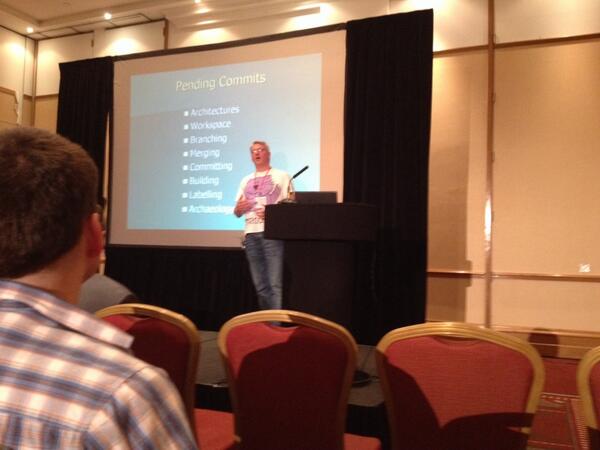
At end of my ACCU 2014 Conference talk this year on Version Control - Patterns & Practices an interesting question came up:-

What’s the right size for a commit?

My answer, which I’ll admit was mostly based on instinct and not through any prior reasoning, was this:-

Something that can be cherry picked.

So that was the short answer, this post is the longer one that leads me to that conclusion…

Single Responsibility Principle

I’ve written before (What’s the Check-In Frequency, Kenneth?) about the effects of fine-grained commits on an integration branch, suffice to say that they cause a lot of noise when you come back to the history to do a spot of software archaeology. In my opinion, if you want to check-in after you get every unit test passing then you should use some kind of private branch. The converse side would be to bundle up so much into a single commit that it would appear as the proverbial Big Ball of Mud.

In essence the advice I gave was nothing more than the application of the age old Single Responsibility Principle as applied to the problem of committing changes to a version control system.

Cherry Picking

The practice of cherry picking changes from one branch to another (often from development to release to squeeze one more feature in) has a bad reputation. I suspect the reason for this is largely down to the breakages and stress it’s caused from incorrectly trying to divorce one single “feature” from the other changes that got made at the same time. Or from not merging all the commits that make up the “logical set” for that feature.

Don’t get me wrong cherry picking is an ugly business that should be avoided if at all possible, but it has its uses and so my approach has always been to  ensure that my commits create small, consistent units of change. Of course I break the build too sometimes and consequently I might have the odd “stray” commit that fixes up the build, but by-and-large each commit should stand alone and add some “value”.

Feature Branches

I very rarely use feature branches because I dislike all the constant merging to and fro, but when I have to the merge at the end usually becomes a single commit to the integration branch. The exception is when I’ve also made a few other changes as a by-product. Whilst the main goal is to implement a specific feature (or fix a bug, etc.) when you’re working on a legacy codebase that lacks any automated test coverage it can save a fair bit of time if the cost of testing can be amortised across a number of changes. This means that during the final merge I need to initially cherry pick a number of other fixes first as individual commits, then merge the remainder (the core feature) as a single commit.

In the integration branch this translates to a series of commits, where each one corresponds to a single feature, it just so happens that they all came from the same source branch. Hence my view is that as long as the “observable outcome” is the same - small, feature-focused commits on the integration branch - it doesn’t really matter too much how they got there. Granted it makes reading the private branch is little more awkward in the future but I feel the saving in development time is often worth the cost.

Feature Toggles

My preference has generally been for continuous integration through the use of feature toggles. This makes integration easier but cherry-picking harder because the entire feature might be spaced out across a number of discrete commits. I often break a feature down into many smaller tasks that can be delivered to production as soon as possible. This means I generally start with any refactoring because, by definition, I cannot have made any observable changes. Next up is the new code, which, as long as I don’t provide a means to access it can also be deployed to production as a silent passenger. That just leaves the changed or deleted code which will start to have some noticeable impact, at least when it’s toggled on. Each one of these steps may be one or more commits depending on how big the feature is, but each one should still be a cohesive unit of work.

From a cherry-picking perspective what we need to know is all the individual commits that make up the entire feature. This is where I’ve found the practice of tagging each commit with the “change request number”. If you’re using something like JIRA then each feature will likely be represented in that system with a unique id, e.g. PROJ-123. Even Trello cards have a unique number that can be used. I usually prefix (rather then append) each commit with the change code as it makes them easy to see when scanning the VCS change log.

Theory and Practice

It might sound as though cherry-picking features is a regular affair because I pay more than lip-service to them. That’s really not the case, I will avoid them like everyone else, even if they appear to be easy. Unless a change is relatively trivial, e.g. a simple bug fix, it’s quite possible that some refactoring on the integration branch will muddy the waters enough to make not doing it a no-brainer anyway.

It’s hard to quantify how much value there would be in any arbitrary commit. If the entire change is a one-line bug fix it’s easier to determine how big the commit should be. When it’s a new feature that will involve the full suite of modifications - refactoring, adding, removing, updating - it can be harder to see how to break it down into smaller units. This is where I find the notion of software archaeology comes in handy because I project forward 12 months to my future self and look back at the commit and ask myself whether it makes sense.


Photo by Thaddaeus Frogley (@codemonkey_uk)